

Navigate frustrating connectivity glitches with this comprehensive guide for seamless in-car integration
Android Auto Communication Error 8 signals an authentication breakdown between your phone and your vehicle's infotainment system, preventing a proper connection. The most common triggers include time/date mismatches, outdated software on either device, and issues with the USB cable or wireless setup. To fix this, you should first align the time settings on both your phone and car, ensure all relevant software is updated, and then proceed with a clean reconnection.
Essential Insights for Resolving Android Auto Error 8
- Time Synchronization is Key: A prevalent cause of Error 8 is a mismatch in date, time, or time zone settings between your Android device and your car's head unit. Ensuring both are set to automatic synchronization is often the quickest fix.
- Software Upgrades are Crucial: Keeping your Android Auto app, Google Play Services, phone operating system, and car infotainment firmware updated is vital. Outdated software can lead to compatibility issues that trigger authentication failures.
- Quality Connection Matters: Whether wired or wireless, a stable and appropriate connection is paramount. For wired setups, use short, high-quality, data-transfer-capable USB-IF certified cables. For wireless, ensure clean Bluetooth and Wi-Fi pairings.
Encountering "Android Auto Communication Error 8" can be incredibly frustrating, halting your access to navigation, music, and hands-free communication during your daily commute or a planned American road trip. This error typically signifies a problem with the essential authentication handshake between your Android smartphone and your car's infotainment system. When this security check fails, Android Auto cannot launch, leaving you disconnected. This comprehensive Android Auto troubleshooting guide provides step-by-step solutions to address cable, software, and compatibility issues, helping you get back on the digital highway.
Unpacking the Android Auto Communication Error 8 Mystery
Understanding the Root Causes of This Persistent Problem
Android Auto Communication Error 8 specifically points to an authentication failure. This means your Android device and your car's head unit are unable to securely verify each other for data exchange. This isn't just a simple cable malfunction; it's a security-related blockage that prevents Android Auto from initiating its services. Resolving this often involves a methodical approach to identifying and correcting the underlying software or configuration discrepancies.
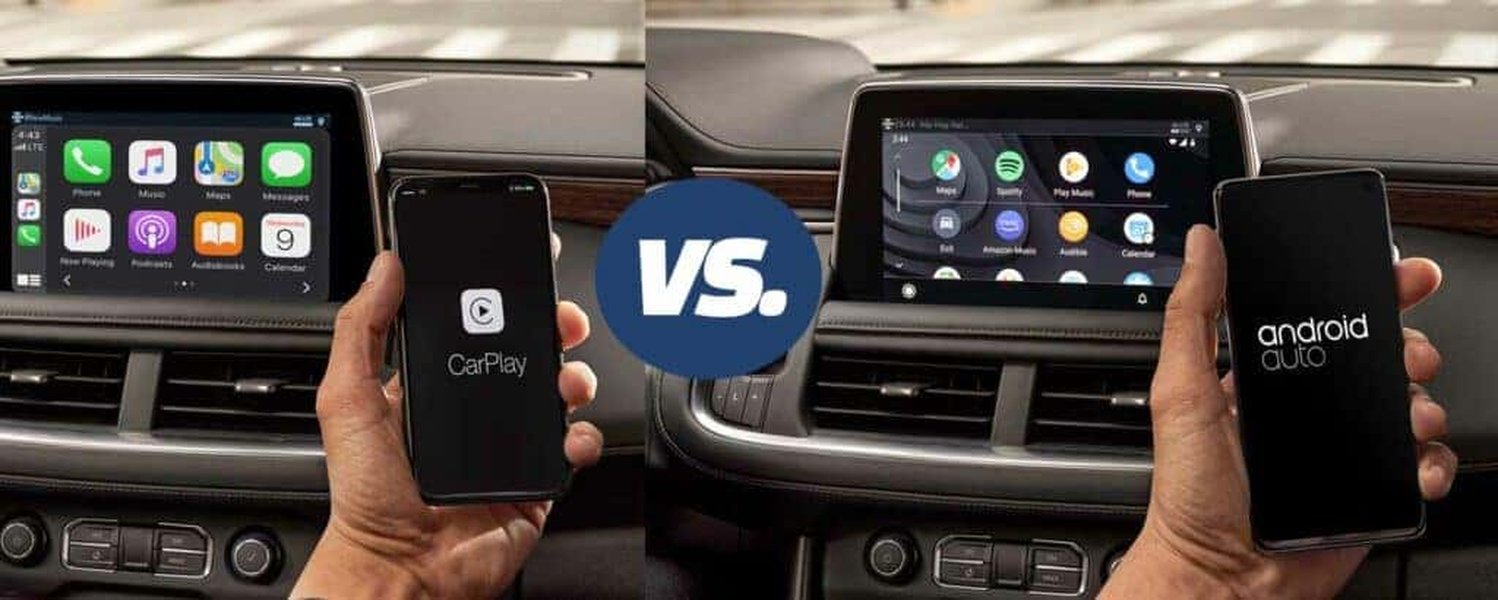
Illustration of smartphone connected to car's infotainment screen, representing Android Auto functionality.
Primary Triggers for Error 8: Why It Happens
- Time and Date Discrepancies: One of the most overlooked yet common causes for Error 8 is a mismatch in the date, time, or time zone settings between your Android device and your vehicle. The authentication process relies on accurate time synchronization, and any deviation can trigger a security lockout. This is especially true for vehicles that may have had their battery disconnected or experienced a system reset, affecting their internal clock.
- Outdated Software Ecosystem: An outdated Android Auto app, an older version of Google Play Services, an unpatched phone operating system (OS), or even an outdated firmware on your car's infotainment system can lead to compatibility gaps. These gaps can prevent the necessary security protocols from completing, resulting in Error 8.
- Suboptimal USB Connections: While Error 8 is primarily an authentication issue, a poor physical connection can exacerbate or trigger it. Using a low-quality, damaged, or "charge-only" USB cable can prevent the data transfer required for the authentication handshake, leading to this error. Similarly, a dirty or damaged USB port on either the phone or the car can interrupt the connection.
- Corrupted App Data or Stale Pairings: Over time, the Android Auto app's cache or data can become corrupted. Similarly, lingering "ghost" pairings from previous connections or conflicting Bluetooth profiles can confuse the system, hindering a fresh, secure connection.
- Wireless Connectivity Issues: For wireless Android Auto setups, unstable Bluetooth pairing, weak Wi-Fi Direct signals (often operating on 5GHz bands), or interference from other devices can lead to authentication failures, manifesting as Error 8.
- Permissions and Battery Optimization: Android Auto requires specific permissions (like location, microphone, storage) to function correctly. If these are restricted or if your phone's battery saver mode aggressively limits background app activity, it can interfere with the app's ability to maintain a stable connection and authenticate.
The Swift Fix: Resolving Android Auto Error 8 Rapidly
Immediate Actions to Get Back on the Road
Before diving into more detailed troubleshooting, these quick solutions often resolve Android Auto Communication Error 8 in just a few minutes. Always ensure your vehicle is safely parked before attempting any fixes.
Quick Troubleshooting Steps
- Restart Both Devices: Power cycle your Android phone and your car's infotainment system. Turn your phone completely off and back on. For your car, turn off the engine, open and close the driver's door, wait for about 1-2 minutes for the system to fully power down, then restart the vehicle. This clears temporary glitches.
- Verify Time and Date Settings: This is paramount for Error 8.
- On your phone: Navigate to Settings > System > Date & time. Ensure "Set time automatically" and "Set time zone automatically" are enabled.
- In your car: Access your vehicle's infotainment settings and check its date, time, and time zone. Set it to automatic synchronization via GPS or network if possible, and ensure it matches your phone's settings, especially concerning daylight saving.
- Update Android Auto and Google Play Services: Go to the Google Play Store on your phone, search for "Android Auto" and "Google Play Services," and update them if an update is available. Restart your phone afterward.
- Check USB Connection Mode: If you're using a wired connection, plug your phone into the car. Swipe down your phone's notification shade, tap the USB notification, and ensure "File Transfer" or "Android Auto" mode is selected, not "Charging only."
Comprehensive Step-by-Step Android Auto Troubleshooting Guide
Detailed Solutions for Persistent Connectivity Challenges
If the quick fixes don't resolve the issue, it's time for a more in-depth Android Auto error code 8 solution. These steps cover common scenarios across various car brands popular in the US market, like Toyota, Ford, Honda, Chevrolet, and Hyundai.
1. Optimize Your USB Cable and Ports
A reliable physical connection is the foundation of Android Auto. Poor quality or damaged cables are a significant cause of data transfer issues.
- Use High-Quality, Certified Cables: Always prioritize the original USB cable that came with your phone (e.g., a Samsung USB-C cable for a Galaxy phone or a Google Pixel cable). If unavailable, invest in a short (ideally under 3 feet/1 meter), USB-IF certified cable designed for data transfer, not just charging. Generic or dollar-store cables are often problematic.
- Inspect and Clean Ports: Check both ends of your USB cable and your phone's USB port for any visible damage, lint, or debris. Use compressed air (not a sharp object) to clean ports. Also, inspect your car's USB ports.
- Try Different Ports: Many vehicles, especially SUVs and trucks, have multiple USB ports, but only one or two might support Android Auto data transfer. Experiment with all available USB ports in your car. Some cars label the compatible port with a smartphone icon.
- Avoid Adapters and Hubs: USB hubs, extenders, or non-certified adapters can degrade the signal and cause connection instability. Plug your phone directly into the car's USB port whenever possible.
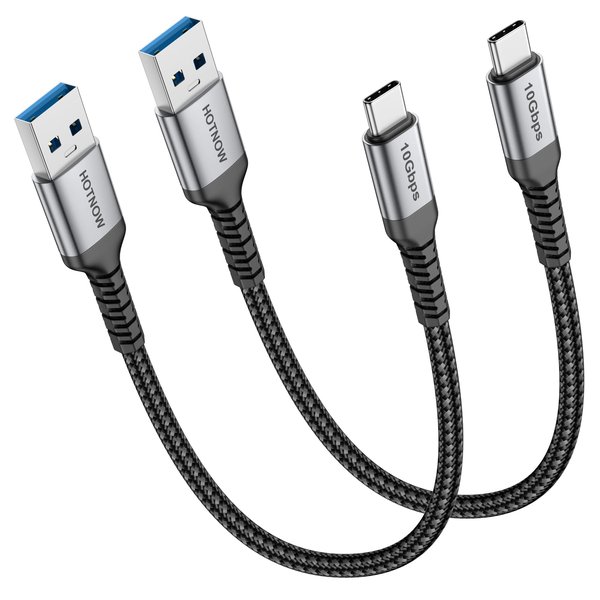
Example of a short, high-quality USB-C to USB-A cable recommended for reliable Android Auto connection.
2. Ensure Software is Up-to-Date for Peak Android Version Compatibility
Maintaining current software on all components is essential for addressing bugs and compatibility issues that can lead to Error 8.
- Phone Operating System (OS): Go to Settings > System > System update and install any pending updates. Wired Android Auto generally requires Android 6.0 or higher, but Android 9.0 (Pie) or newer is recommended for optimal performance and security. For wireless Android Auto, Android 11+ is ideal.
- Android Auto Application: Open the Google Play Store, search for "Android Auto," and tap "Update" if available. Even on phones with Android 10 or newer where Android Auto is built into the OS, the app still receives critical updates via the Play Store.
- Google Play Services: This background service is crucial for many Android functions, including Android Auto. Ensure it's updated via the Google Play Store. You can find it under Settings > Apps > See all apps > Google Play Services.
- Car Infotainment System Firmware: This is often overlooked. An outdated car head unit firmware can cause significant compatibility issues. Check your vehicle's manual for instructions on updating the system, or visit your local American dealership service department (e.g., Ford, Chevrolet, Toyota) as they can often perform these updates.
3. Clear Cache and Data for Android Auto and Related Apps
Corrupted temporary files or old settings can cause conflicts. Clearing them provides a fresh start.
- Go to Settings > Apps (or Apps & notifications).
- Find and tap on Android Auto.
- Select Storage & cache.
- First, try Clear cache. Test Android Auto.
- If the issue persists, return to Storage & cache and select Clear storage / Clear data.
Warning: This will reset Android Auto to its default settings, requiring you to re-do the initial setup and re-pair your car. - Repeat this process for Google Play Services and the main Google app if the problem continues.
This is a highly effective Android Auto not working fix, especially after software updates.
4. Reset Android Auto Pairings and Car Profiles
Stale or conflicting pairings can prevent a successful connection. A clean slate often resolves this.
- On your phone: Open the Android Auto app (or go to Settings > Connected devices > Connection preferences > Android Auto). Tap Previously connected cars. Look for a menu option (often three dots) to "Forget all cars."
- On your car's infotainment system: Go into the Bluetooth or smartphone projection settings and delete your phone from the list of paired devices. Consult your car's manual for specific instructions (e.g., for a Toyota Camry or a Honda CR-V).
- Reboot: Restart both your phone and your car's infotainment system.
- Reconnect: Attempt to connect your phone to your car again. This will initiate the pairing process from scratch, which often resolves hidden conflicts.
5. Adjust App Permissions and Battery Optimization
Android Auto needs proper access to function reliably.
- Grant All Necessary Permissions: Go to Settings > Apps > Android Auto > Permissions. Ensure all critical permissions (Location, Microphone, Storage, Contacts, SMS, Phone) are allowed.
- Disable Battery Saver/Optimization: Battery optimization settings can aggressively close background apps, including Android Auto, leading to disconnections or failures.
- Go to Settings > Battery > Battery Saver and disable it.
- For specific apps, navigate to Settings > Apps > Android Auto > Battery > Unrestricted or Don't optimize. Do this for the main Google app as well.
- Check for VPN/Firewall Conflicts: If you use a VPN or a firewall app, try temporarily disabling it to see if it interferes with Android Auto's connection, especially for wireless setups.
Car-Specific Considerations for US Market Vehicles
Tailored Advice for Popular American Brands
While the general steps apply broadly, certain car brands may have specific quirks or recommendations. This section provides targeted advice for fixing Android Auto in popular US market vehicles for a seamless road trip experience.
Ford SYNC Systems (F-150, Explorer, Mustang)
- SYNC Settings: Ensure Android Auto is actively enabled within your Ford SYNC system's settings.
- Master Reset: For persistent issues, a SYNC master reset can be effective. This usually involves holding the power button and the seek-forward button simultaneously for about 10 seconds until the system reboots. This is similar to a factory reset but specific to the infotainment, so be aware it will clear presets and paired devices.
- Firmware Updates: Ford dealerships can perform SYNC firmware updates. These updates often include bug fixes for smartphone integration.
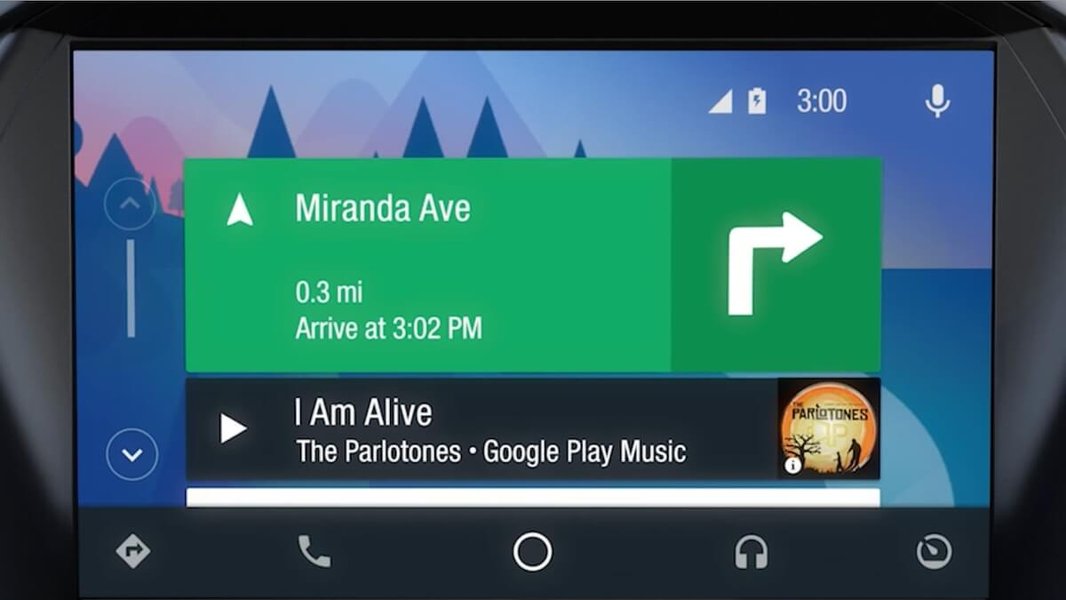
Example of a Ford infotainment screen showing Android Auto integration.
Chevrolet/GM Vehicles (Silverado, Equinox, Tahoe)
- System Software: Check for system software updates directly through your Chevrolet infotainment system's settings menu. Sometimes a full ignition cycle (turning the car off, opening/closing the door, waiting, then restarting) is needed for updates to finalize.
- USB Sensitivity: GM systems can be particularly sensitive to USB cable quality. Stick to OEM or USB-IF certified cables.
- Factory Reset: Some Chevrolet models allow a factory reset of the infotainment system through the vehicle settings, which can resolve deep-seated conflicts.
Toyota (Camry, RAV4, Highlander)
- Dedicated USB Port: Many Toyota models have a specific USB port designated for smartphone integration (often the one in the center console). Ensure you are using this port.
- Entune/Audio Multimedia Updates: Toyota's infotainment systems (Entune or newer Audio Multimedia) receive updates from dealerships that can improve Android Auto stability.
- Re-pairing Strategy: If Error 8 appears, try forgetting your phone from the car's Bluetooth, then re-pair via Bluetooth, and finally connect the USB.
Honda (Civic, CR-V, Accord)
- Console USB Ports: Similar to Toyota, Honda vehicles often have specific USB ports in the center console that support Android Auto. Charging-only ports (e.g., in the armrest) will not work for data transfer.
- Infotainment Reset: Some Honda models allow a system reset by holding down the audio unit's power button for a few seconds. This can clear temporary glitches without a full factory reset.
- Software Alignment: Error 8 often clears for Honda owners after ensuring phone and car time settings are synchronized and re-pairing.
Hyundai/Kia (Elantra, Tucson, Sonata)
- Front USB Port: For Hyundai and Kia, always use the front USB port marked for smartphone connectivity.
- Navigation Updates: After any navigation or system update, it's a good practice to re-pair Android Auto as previous settings might be cleared or altered.
- Wired-First Approach: If you're struggling with wireless Android Auto, try a successful wired connection first, then disconnect the cable and attempt wireless setup again. This often "primes" the system.
Tackling Wireless Android Auto Connection Problems
Strategies for Flawless Cable-Free Connectivity
Wireless Android Auto offers incredible convenience, especially for drivers on US highways, but it introduces its own set of connection challenges. If you're experiencing Error 8 with a wireless setup:
- Forget All Pairings: On your phone, go to Bluetooth settings and "forget" your car. In Android Auto settings, "forget all cars." On your car's infotainment system, delete your phone from all paired device lists (Bluetooth and Android Auto profiles).
- Reset and Re-enable: Reboot both your phone and car. Ensure Bluetooth and Wi-Fi are enabled on your phone. Temporarily disable any VPNs or aggressive battery saver modes.
- Initiate Pairing from Car: Start the pairing process from your car's Android Auto menu. Your car will typically broadcast a Wi-Fi Direct signal, and your phone will connect to it via Bluetooth initially. Confirm all prompts on both devices. Keep your phone near the dash during setup.
- Minimize Interference: Ensure no other Bluetooth devices are actively trying to connect, and turn off unused Wi-Fi hotspots on your phone.
- Wired-First "Priming": A powerful trick for finicky wireless setups is to successfully connect via a high-quality USB cable first. Once Android Auto launches successfully wired, disconnect the cable. On the next ignition cycle, attempt the wireless connection. This often helps the car and phone establish the necessary underlying communication protocols.
Often, setting it up wired once and then attempting wireless connection on subsequent drives resolves many issues.
Comprehensive Error 8 Solution Matrix: Cause and Fix
Matching Symptoms to Effective Troubleshooting Steps
This table summarizes the most common root causes of Android Auto Communication Error 8 and their corresponding solutions, providing a quick reference for an Android Auto troubleshooting guide.
| Root Cause | Common Symptom | Recommended Action for Resolution |
|---|---|---|
| Time/Date Mismatch | "Communication Error 8" at first connection attempt; car clock significantly off or wrong time zone. | Ensure both phone and car are set to automatic date/time and correct time zone. Reboot car infotainment. |
| Outdated Software (Phone/App) | Error appears after recent phone OS update or randomly; app crashes. | Update Android Auto app, Google Play Services, and phone OS via Play Store/System Settings. Restart phone. |
| Outdated Car Firmware | Persistent error despite phone-side updates; other Android phones fail to connect. | Visit dealership for infotainment system firmware update specific to your vehicle model. |
| Charge-Only USB Cable | Phone charges but Android Auto doesn't launch; no "data transfer" prompt. | Use a short (under 3 ft), USB-IF certified data cable. Verify "File Transfer" or "Android Auto" mode is selected. |
| Corrupted Cache/Data | Inconsistent behavior; intermittent connection failures; slow performance before error. | Clear cache and, if necessary, data for Android Auto and Google Play Services apps. Re-setup AA. |
| Stale/Conflicting Pairings | Android Auto connects briefly then disconnects; connection loops. | "Forget all cars" in Android Auto settings. Delete phone from car's Bluetooth. Re-pair from scratch. |
| Restricted Permissions/Battery Saver | Features like voice commands fail; AA won't run in background or disconnects after a while. | Grant all Android Auto permissions (Mic, Location, etc.). Disable battery optimization for AA and Google app. |
| Wireless Interference | Wireless AA connects once, then fails on subsequent drives or is unstable. | Forget all Bluetooth/Wi-Fi pairings on both devices. Reboot. Re-pair from car's menu. Ensure strong Wi-Fi. Try wired-first prime. |
| Dirty USB Ports | Intermittent connection; physical jiggling of cable sometimes helps. | Inspect and clean phone and car USB ports with compressed air to remove lint or debris. |
Preventing Future Android Auto Errors
Best Practices for a Smooth and Reliable Connection
Once you've successfully fixed Android Auto Error 8, implementing these preventative measures can save you from future frustrations, especially during long road trips across the US.
- Always Use High-Quality Cables: Keep a spare, short (under 3 feet), USB-IF certified data transfer cable in your glove compartment. This is your first line of defense against connection problems.
- Stay Updated: Make a habit of regularly checking for and installing updates for your phone's OS, the Android Auto app, and Google Play Services. For your vehicle, inquire about infotainment firmware updates during routine service appointments at your American dealership.
- Regularly Clear Cache: Periodically clear the cache for the Android Auto app to prevent corrupted temporary files from building up. A monthly clear is often sufficient.
- Perform Occasional Restarts: Simple restarts of both your phone and your car's infotainment system can clear temporary software glitches and refresh connections.
- Verify Settings Before Long Drives: Before embarking on a long highway journey, quickly confirm your phone's date/time settings and ensure Android Auto app permissions are correctly set and battery saver is off.
- Clean USB Ports: Use compressed air to clean your phone's and car's USB ports every few months to remove lint and debris that can hinder data transfer.
- Monitor Car-Specific News: Stay informed about any known issues or software updates specific to your car's make and model (e.g., Ford SYNC, Toyota Entune) through owner forums or manufacturer websites.
Important Warning: Factory Resets
Consider a factory reset of your phone or car's infotainment system only as a last resort. This will erase all data and settings, requiring complete re-setup. Always back up your phone data, radio presets, and vehicle profiles before proceeding. For car infotainment resets, always follow the manufacturer's specific instructions, or have it done by a dealership technician.Frequently Asked Questions About Android Auto Error 8
Conclusion: Reclaim Your Connected Drive
Android Auto Communication Error 8, while frustrating, is a resolvable issue. By systematically addressing potential problems related to time synchronization, software updates, and connection integrity, you can typically restore seamless smartphone integration in your vehicle. Remember to prioritize high-quality cables, keep all software components current, and perform regular maintenance. Should persistent issues arise, especially for car-specific firmware problems, consulting an American dealership is a sensible next step. With these comprehensive solutions, you can conquer Error 8 and enjoy the full benefits of Android Auto on every journey, from daily commutes to cross-country road trips.
